
WITHERBLOOM CLOSED PLAYTEST TIPS AND TRICKS
Guidance and tips
Accessing the Playtest

- Open Steam
- Select “Games” from the toolbar
- Select “Activate a Product on Steam”
- Enter the code you received
- Open the Library tab
- Search for “Witherbloom Playtest”
- Select Install, and press play once it is installed
Creating your character
Your character class is a combination of a Combat Class and a Survival Class (as indicated by the yellow ribbons). Combat and Survival Class have their own skill tress that you will be able to level up in game. You can select your class either by selecting a Combat and Survival class on the right and left side respectively, or you can select your combined Character class in the middle.
Controls
Control mappings can be found in the pause menu. Controls are not currently rebindable, however they will be in later builds. The game can be played with either mouse and keyboard or gamepad.
Mouse and Keyboard:

Gamepad:

Gameplay Notes and Tips
- To get characters to join the Hearth, you will need to build them a bedroll. The characters will only show up after you rest; so it is recommended to place buildings before sleeping in the Hearth.
- This playtest encapsulates the early game - the first parts of the first three Dungeon Floors of Witherbloom. After getting the Smith, Weaver, and Cook to join your hearth you can continue to progress, play, and craft, however progression deeper into the world and story will be limited.
- Survival needs (Thirst, Hunger, Fatigue, and Withering) only degrade while you are active; if you are idle (eg: standing still, in a menu), they will not degrade further.
- Witherbloom uses a stamina system for attacks and dodging; managing your stamina in combat is important to success.
- When leveling up a new skill, it will automatically be assigned to an open skill slot. You can reassign skills by clicking on them in the skill trees menu.
- Skills generally require energy. Unlike stamina, energy does not automatically regenerate; to regain energy you will need to camp or craft or find consumables within the dungeons.
- After starting a dungeon run, you will need to access an exit point to return to the Hearth. Each dungeon has multiple exit points; plan to find and use them to extract yourself before it is too late.
- In addition to sleeping within the hub, there are camp sites within the dungeons. These provide places of safety where you can rejuvenate yourself partway through a run – they can be an important way to extend your time in the dungeon long enough to achieve your goals.
- The sites must be powered by an Eternal Ember, which can be found scattered throughout the realms.
- Within the hub / Hearth you will be safe from the effects of the Withering.
- In some UI elements the gamepad is not working as intended. If you have issues, please use mouse and keyboard navigating those.
- Placing a Structure: To place a structure, you will need to place it on an activated plot. Active plots are indicated in blue, and green when targeted.
- Plots can be activated by using Divine Matter on the outlets throughout the Hearth. Each outlet will open one or more additional plots to be built on.
- Plots can be activated by using Divine Matter on the outlets throughout the Hearth. Each outlet will open one or more additional plots to be built on.
- You can place a stash on your Bedplot to have storage space in the hub. Additional stashes placed on other plots will not expand your storage; but just give access to it.
- To expand your storage further, you can build or upgrade a Storage house structure.
- To expand your storage further, you can build or upgrade a Storage house structure.
- If you are not sure what to do next in the game, open the Inventory menu and select the “Rumour” tab. By clicking the magnifying glass, you can also track a rumour (quest).
- If you forgot to build something or rested too early in the hub, worry not. Just do another dungeon run and then return to the hub / Hearth. It will be night again, and you will be able to build and rest again.
- Before exiting the game, make sure to press “Save and Continue” in the main menu, before exiting. If you save within a dungeon, you will be respawned at its entrance.
- Buildings can be selected from the top menu in the Build Menu; upgrades are split into three categories based on which buildings they apply to. When placing upgrades make sure to select them from the appropriate building menu.
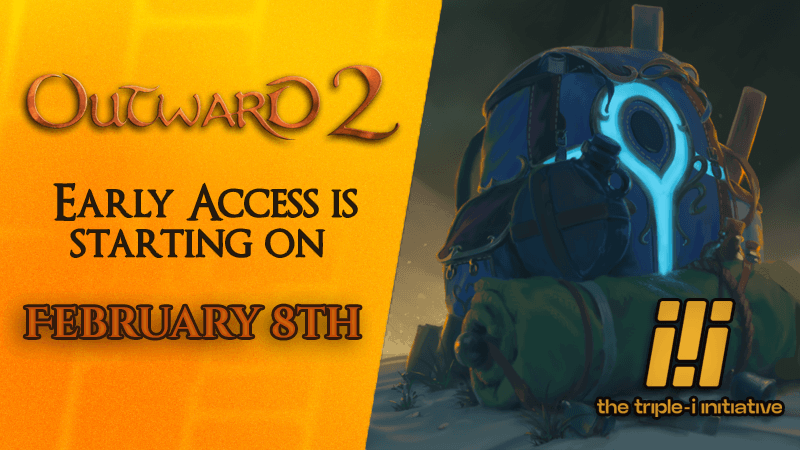
Outward 2 will release in Early Access on February 8th
Outward 2 will release in Early Access on Steam, GOG and Epic on February 8th.
ANNOUNCING EXPLORE AURAI WINNERS
Discover the winners of our Community Contest!
Delaying the launch of Outward 2
Guillaume Boucher-Vidal CEO of Nine Dots explains why Outward 2 needs more time in production.